Acrobat and MacWeb
Get the Acrobat software
If you do not already have Acrobat Reader or Acrobat Exchange installed on your Macintosh, you should first download and install the Free Acrobat Reader for Macintosh, then come back here.
Modify MacWeb to recognize PDF files
After Acrobat Reader or Acrobat Exchange is installed, you will need to modify your set of Helper applications in MacWeb.
The notes here are current as of MacWeb version 1.00ALPHA2.2. You can refer to the official MacWeb documentation for more information.
Select Helpers… from the Edit menu. You will see a long list of MIME Types and Helper applications. Click on the New… button.
Enter application/pdf in the MIME Type field. Uncheck the Don’t Launch checkbox, and Click on the Select Application… button.
Use the file browser to navigate until you find and select your copy of Acrobat Reader or Acrobat Exchange and click on the Open button. Then scroll down and select “PDF ” and click on OK.
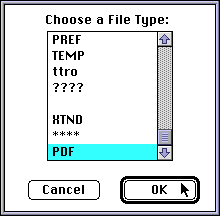
Click on OK again in the “MIME Type” dialog.
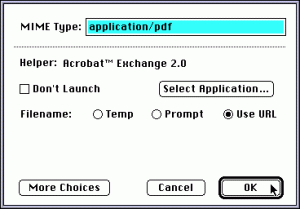
Click on OK in the master Helpers dialog.
Now select Suffixes… from the Edit menu. You will see a long list of Suffix and MIME Type entries. Click on the New… button.
Type pdf in the Suffix field, and select application/pdf from the MIME Type menu. Click on OK. Now click on OK again in the master Suffixes… dialog box.
You are done. Now when you click on a link which is a PDF file, MacWeb will download that file to your default temp folder, prompt you for the name to save the file under, and automatically launch your Acrobat Reader software to open and view the file.